
cancel

[Technical tips] How to Quickly Install Docker Desktop on Windows 10 Using EBOX-ALN3350

2026-04-30

This guide provides step-by-step instructions for installing Docker Desktop on a Windows 10 system using the EBOX-ALN3350 platform. Please follow the steps carefully to ensure a successful installation.
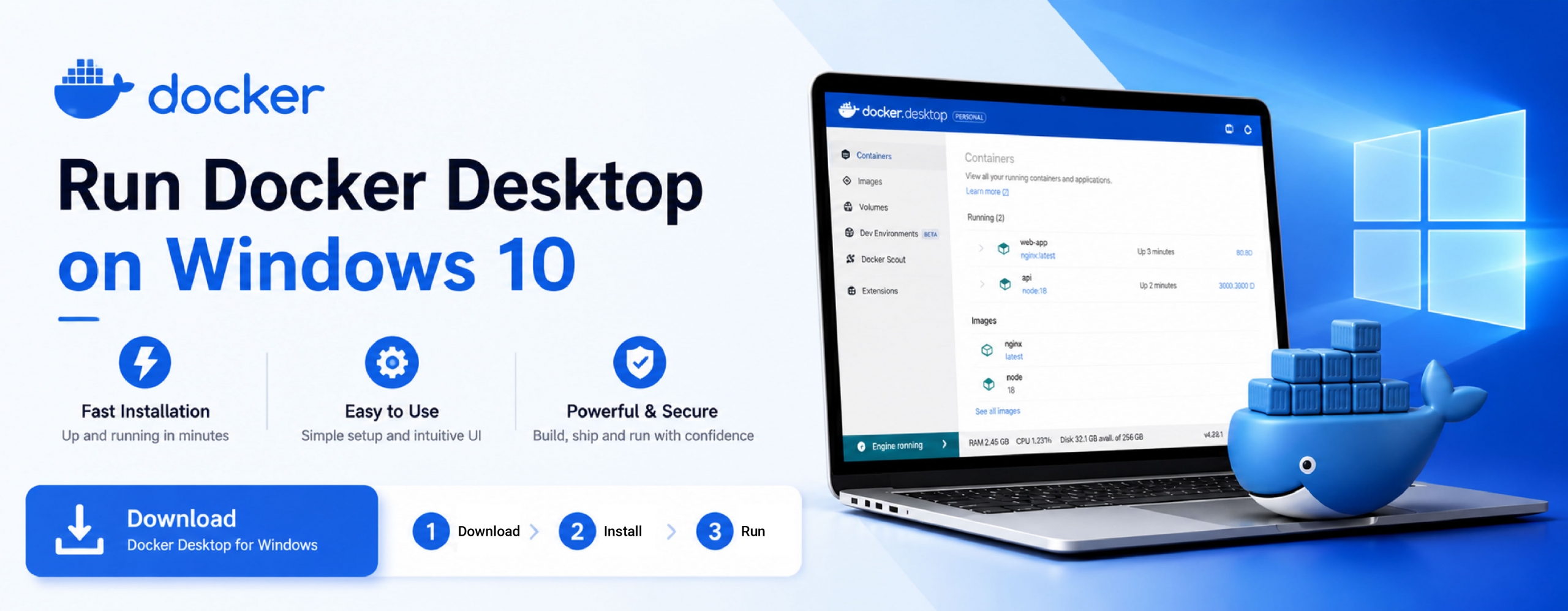
EBOX-ALN3350_202604_en

System Requirements

Before installing Docker Desktop, ensure the system meets the following requirements:

  • Windows 10 64-bit (version 22H2 or later)
  • At least 4 GB RAM (8 GB recommended)
  • CPU supports hardware virtualization
  • Virtualization enabled in BIOS/UEFI
  • WSL 2 installed and enabled
  • Internet connection for downloading Docker Desktop

Steps of operation

Step 1: Verify Operating System

First, make sure your system is running Windows version 22H2 or later.

Step 2: Pre-Installation Setup for Docker Desktop

⚠️Enable WSL2 support for Linux distributions before installing Docker Desktop.

  1. Run the following command in an Administrator Command Prompt or PowerShell:
    wsl --install
    This command will automatically: Enable WSL → Enable Virtual Machine Platform → Install the WSL2 Kernel → Install Ubuntu
  2. Update WSL to the latest version:
    wsl --update
  3. After completion, restart the system and then install Docker Desktop.
 

Step 3: Download and Install Docker Desktop

  1. Open a web browser and search for:
    Docker Desktop for Windows (AMD64)
  2. Download and install the application.
  3. After installation:
    • Right-click Docker Desktop
    • Select Run as administrator
  4. During setup, ensure the following options are selected:
    Use WSL 2 instead of Hyper-V (recommended)
    Add shortcut to desktop
  5. Click OK to continue.
 

Step 4: Restart and Sign In

  1. Close Docker Desktop if prompted
  2. Log out of Windows and log back in.
  3. Launch Docker Desktop.
  4. Create a Docker account or sign in using Google (optional; can be skipped).
 

Step 5: Configure Docker Settings

  1. Open Docker Desktop and go to:
    Settings → Resources → Disk image location
    → Modify the storage location if needed
  2. Then navigate to:
    • Resources → WSL Integration
    • Enable Ubuntu
    • Click Apply & Restart
  3. If prompted, select Yes , move it to apply changes.

Conclusion

You have now successfully installed and configured Docker Desktop on Windows 10 using the EBOX-ALN3350 platform. You can begin running containers and developing applications immediately.
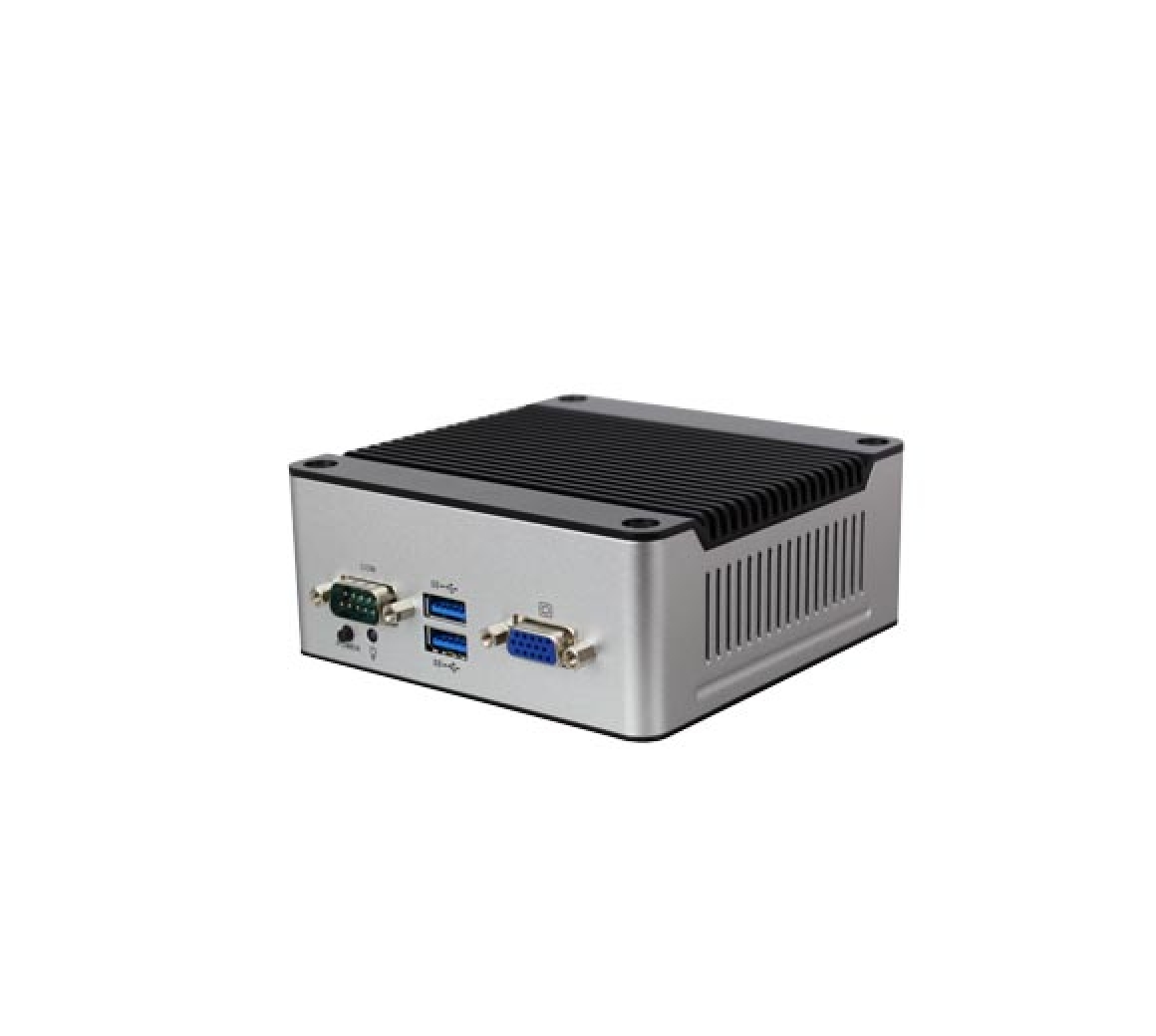

Main features of EBOX-ALN3350:

  • Intel® Apollo Lake N3350 - 1.1GHz
  • SO-DIMM 8GB DDR3L
  • 1S/4U/VGA/2GLAN/Mic-in + Line-out/mPCIe/half-size mPCIe/SATA/mSATA/2HDMI/SIM holder
  • PXE diskless boot
  • Operation Temperature: 0 ~ 60°C/-20℃~60°C (Optional)

For more info and sample request, please write to info@icop.com.tw, call your nearest ICOP Branch, or contact our Worldwide Official Distributor.

Δ