cancel

QEC Software
ArduBlock

Visual Programming Language
(86Duino IDE Compatible)

Specifications

  • Visual programming language for the 86Duino IDE

  • Intuitive drag-and-drop block-based interface

  • Automatically generates C++ code compatible with the 86Duino platform

  • Fully compatible with 86EVA and 86HMI development tools

Manual

Datasheet

Technical Resource


You can click here to download 《ArduBlock User Manual》for complete information.


Description


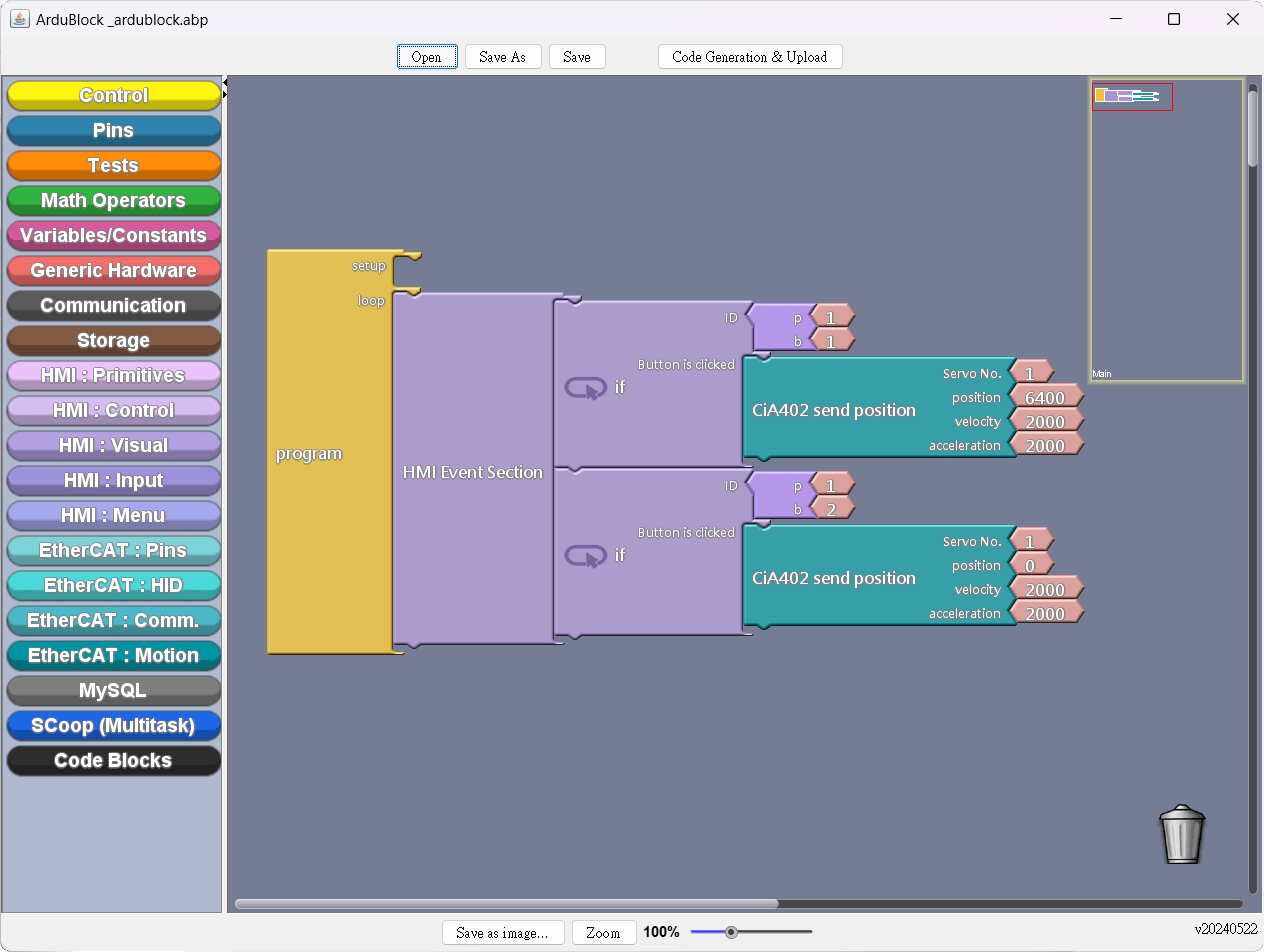
ArduBlock is a visual Arduino programming tool that uses drag-and-drop blocks, significantly lowering the programming barrier to entry.
Even users without programming experience can quickly build applications through an intuitive interface.

Each block corresponds to a specific Arduino function or command, making program logic clearer and easier to understand.
This makes ArduBlock ideal for beginners and users without an engineering background.
 

Key Features

 
  • Visual Programming
    Write programs by simply dragging and dropping blocks. The interface is intuitive and easy to understand.
  • No Programming Experience Required
    Even users without programming experience can quickly build Arduino applications.
  • Blocks Correspond to Commands
    Each block represents a specific Arduino function or command, making program logic easier to understand.


Application Scenarios

 
  • Educational Learning: Students and beginners can learn Arduino programming and hardware interaction through block-based visual programming in classrooms or self-learning environments.

  • Project Development & Prototyping: Engineers and developers can quickly assemble function blocks to test control logic during product development or prototyping, shortening development time.


86DuinoIDE


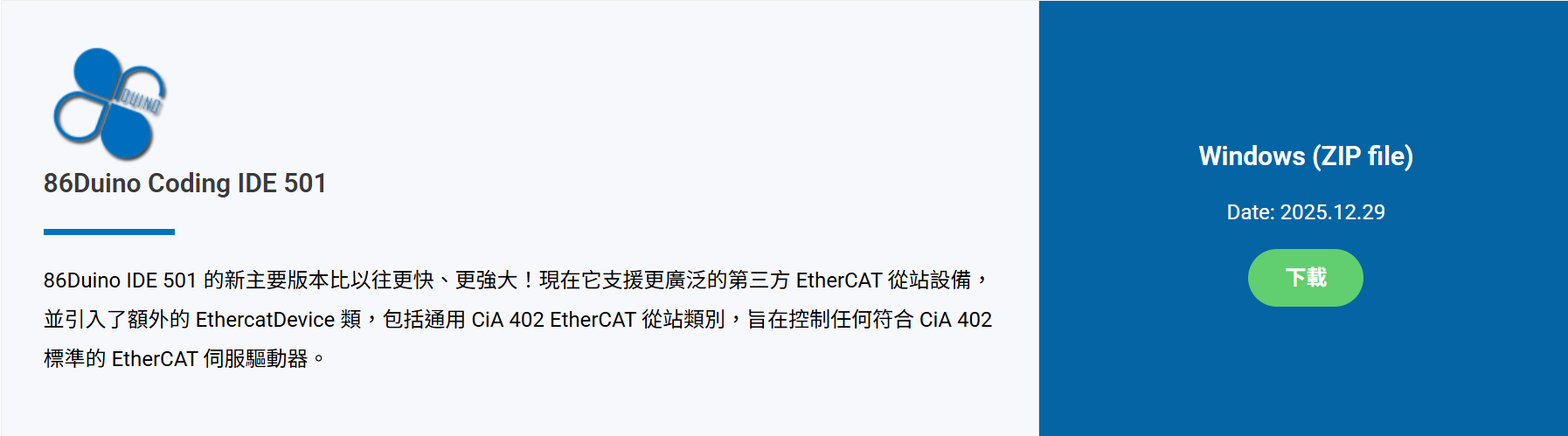
1. Install 86Duino IDE:

Download the 86duino IDE from https://www.qec.tw/software/.

After downloading, please unzip the zip file, no need to install additional software, double-click the 86duino.exe to start.
86DuinoIDE

2. Launch ArduBlock to start visual Arduino programming:

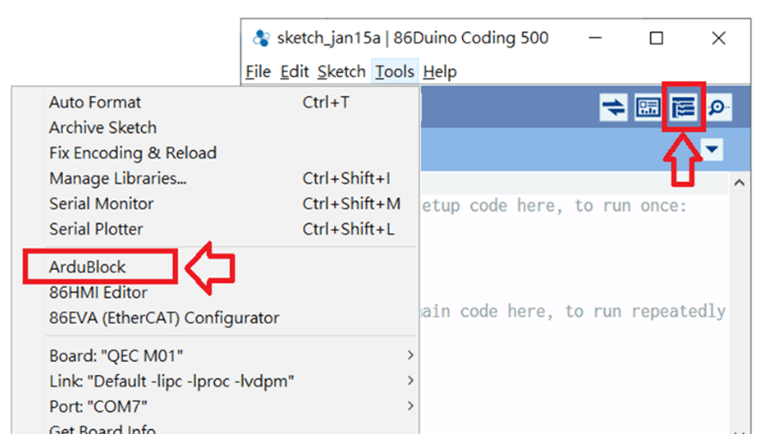
  • Go to Tools -> ArduBlock or Click the icon as shown below.

    86DuinoIDE

  • After launching ArduBlock, you can begin designing right away.

    86DuinoIDE

3. Finished, code generation and upload:

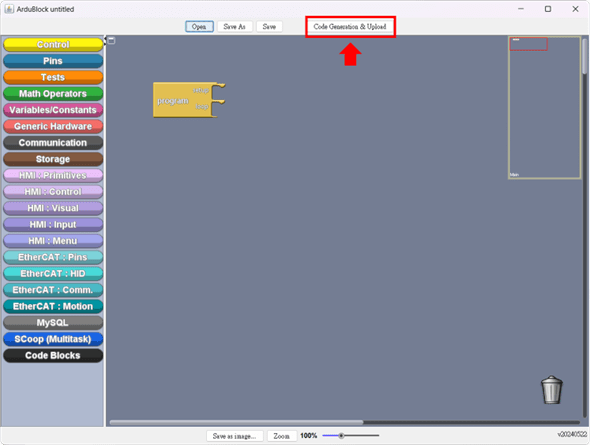
After the finished ArduBlock programming, use the “Code Generation & Upload” button to generate and upload the code to the QEC MDevice.

86DuinoIDE

For more detailed steps and advanced settings, please visit the QEC website: ArduBlock User Manual for complete information.