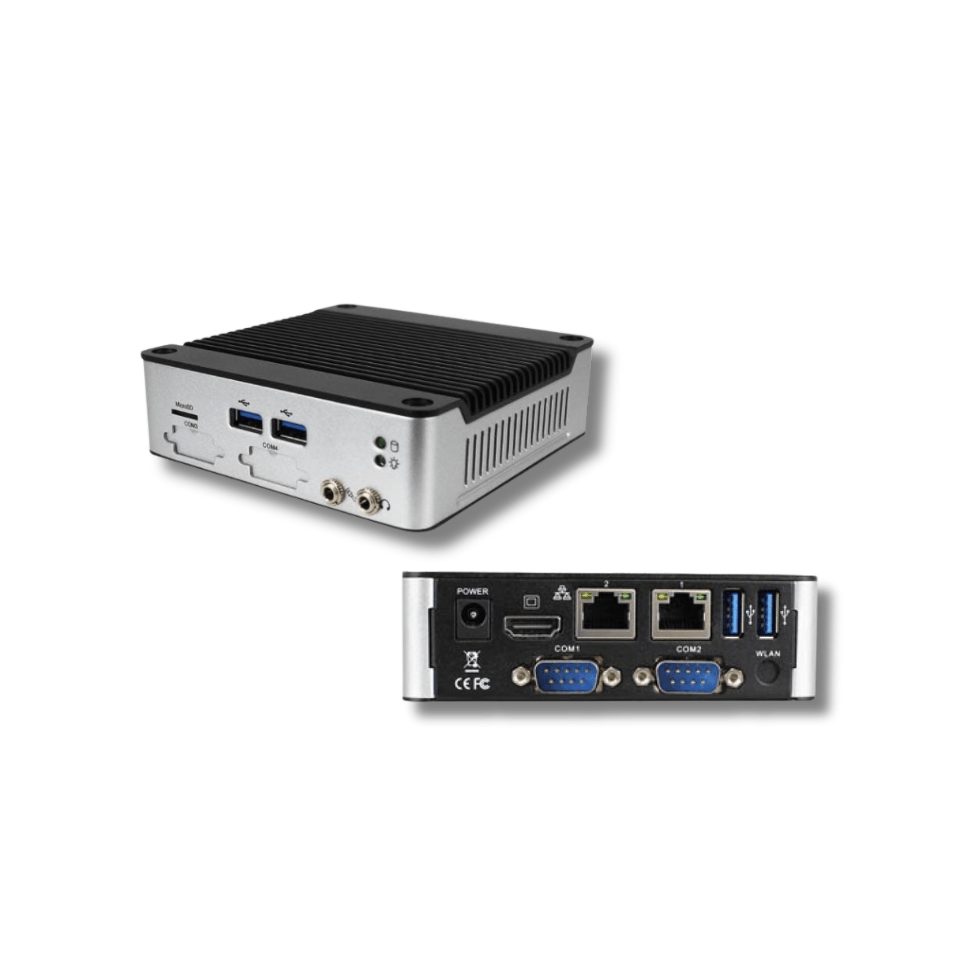
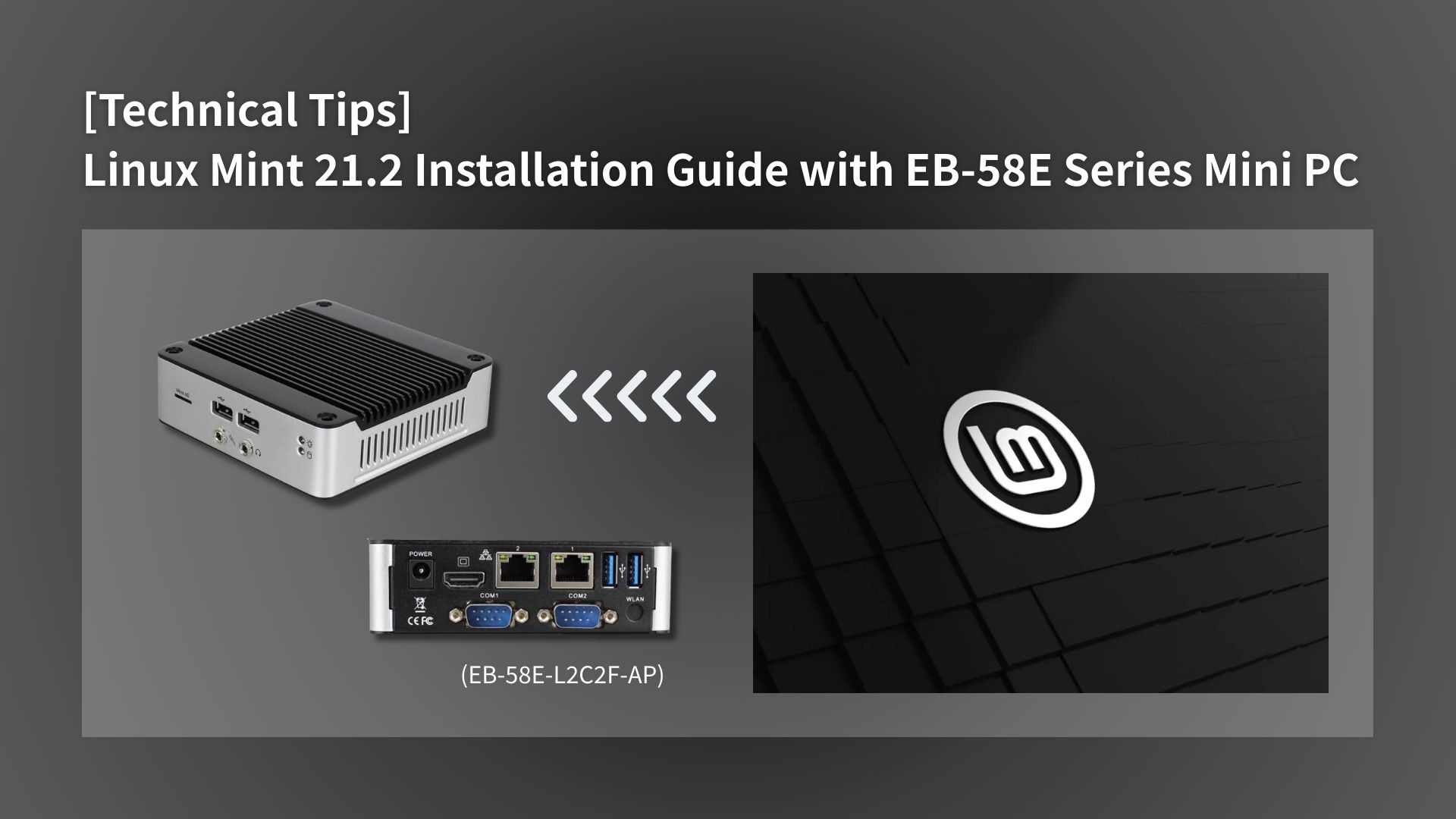
This installation guide is demonstrated using the EB-58E Series Mini PC, which is equipped with an Intel® processor and supports DDR3L memory. For reliable performance with Linux Mint 21.2, we recommend using at least 4GB of RAM. To carry out the installation, a USB flash drive with a minimum capacity of 8GB is required, along with a monitor, keyboard, and mouse connected to the EB-58E Series Mini PC for the setup process. On the software side, the official 64-bit Linux Mint 21.2 ISO file should be downloaded directly from the Linux Mint website.
In this guide, we use Rufus on a Windows system to create the bootable USB installer, as it offers a straightforward and reliable method of writing the ISO image. Once the installer has been prepared, the EB-58E can be booted from the USB drive to begin the Linux Mint installation.
Hardware Preparation
To install the Linux Mint 21.2 on a EB-58E Series Mini PC, you will need the following hardware:
- EB-58E Series Mini PC
- Corresponding storage x1 pcs (minimum required capacity 32GB)
- USB drive x1 pcs (minimum required capacity 4GB)
Software Preparation
Step-by-Step Video Tutorial
Use tool Rufus to create Linux Mint 21.2 installer
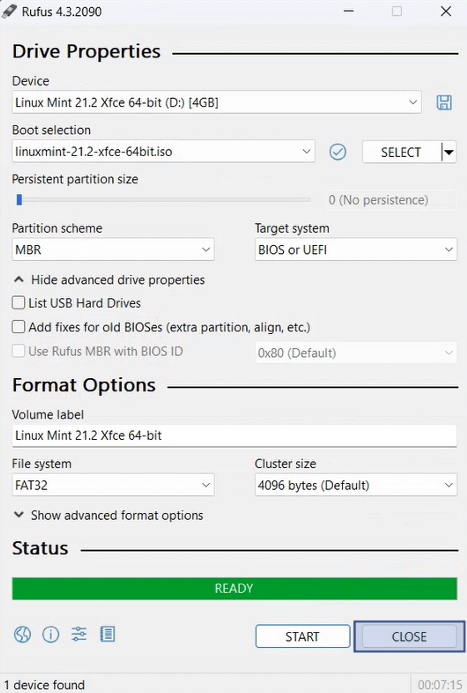
- Connect USB drive to Windows PC, and double click rufus to execute
- Select Boot selection as linuxmint-21.2-xfce-64bit.iso
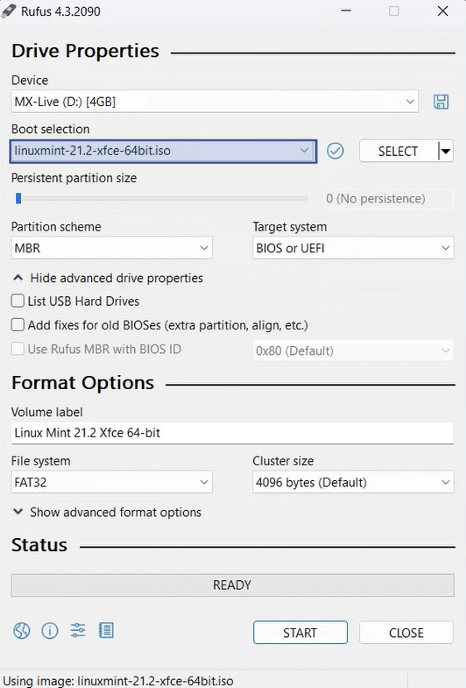
- Click START
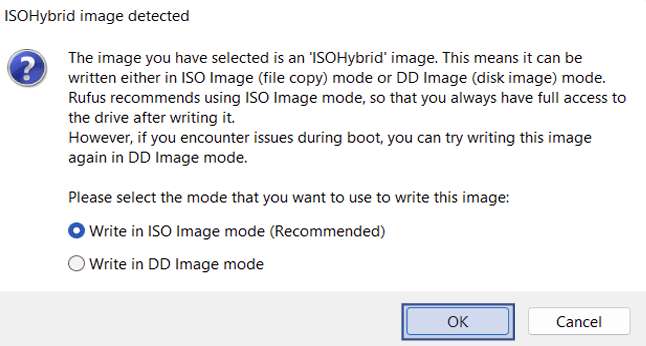
- ISOHybrid image detected, select Write in ISO Image mode and click OK
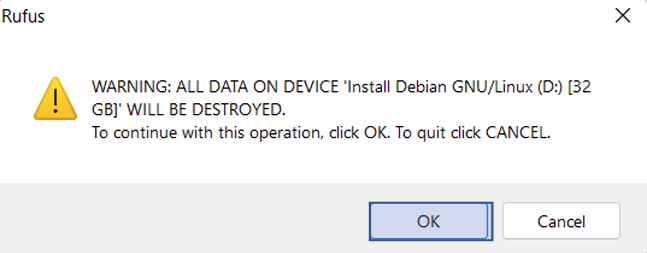
- A warning message appear, click OK to continue this operation
- Click CLOSE and remove USB drive from Windows PC and Linux Mint 21.2 installer is created
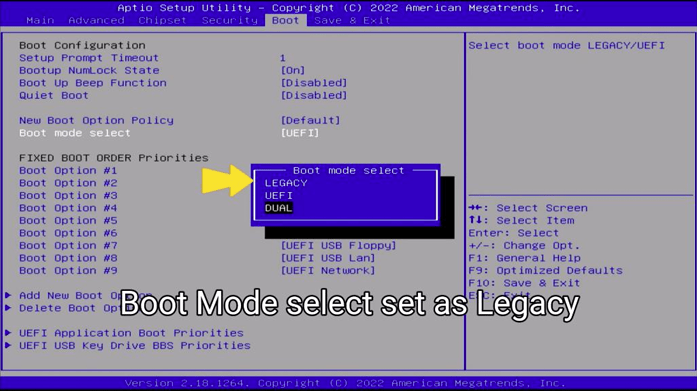
EB-58E Series Mini PC UEFI Boot mode setting
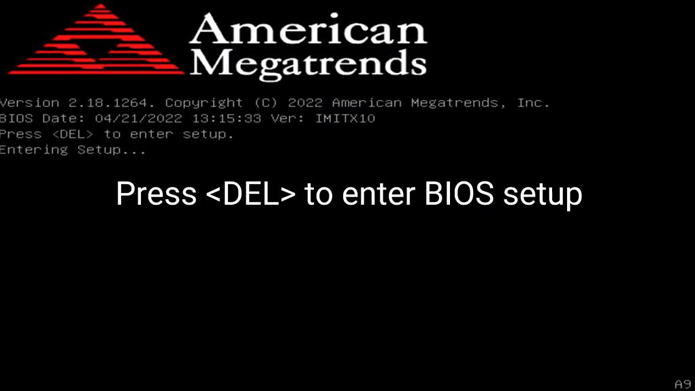
- Press DEL to enter BIOS setup
- Boot mode select as UEFI
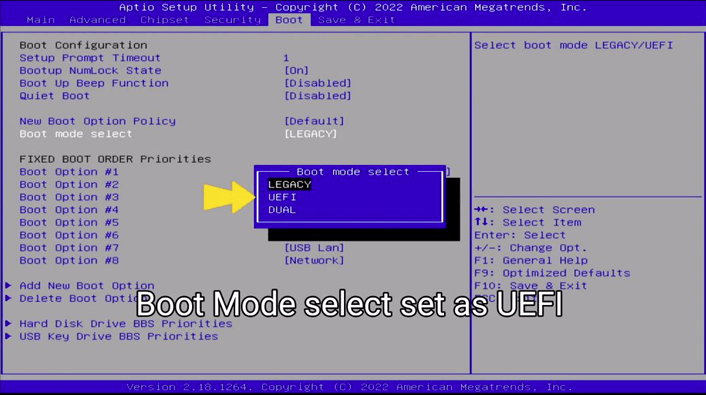
- Set USB installer as 1st boot

- Press F10 to save and exit
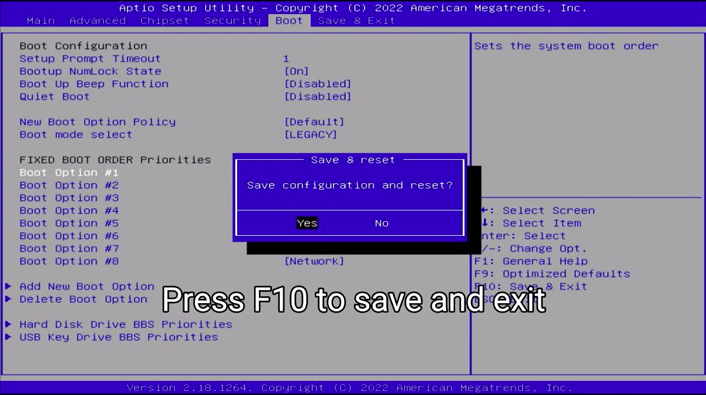
After LEGACY or UEFI mode selected, boot up EB-58E Series Mini PC with Linux Mint 21.2 installer.
- Select Start Linux Mint 21.2 Xfce 64-bit and click enter
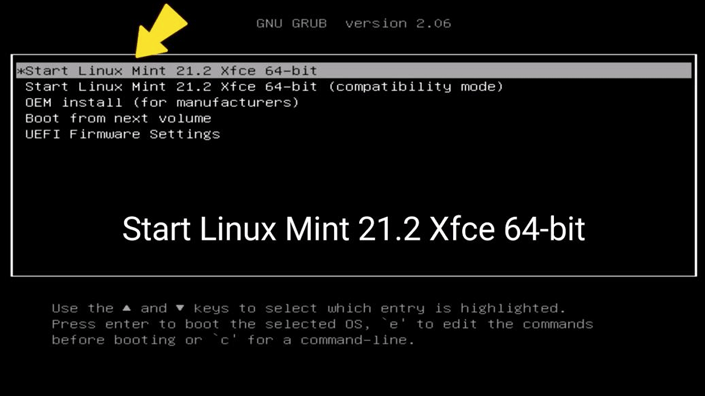
- Click install Linux Mint
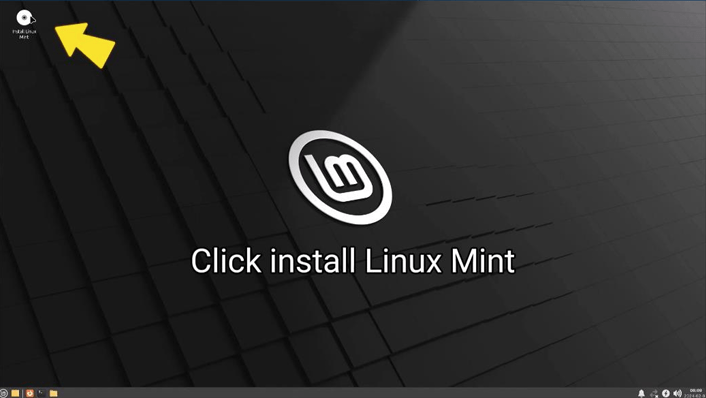
- Set English and click Continue
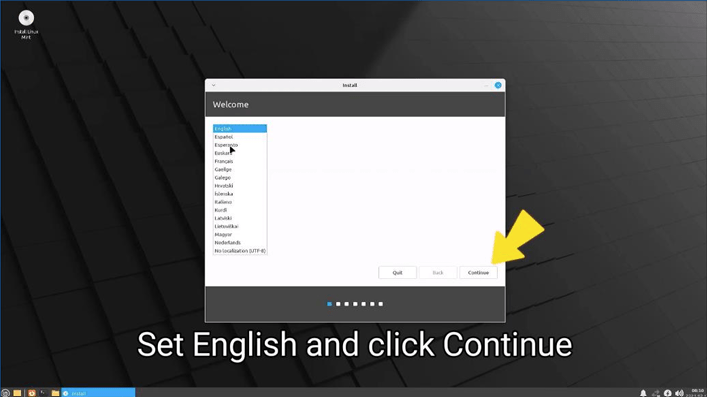
- Set Keyboard layout and click Continue
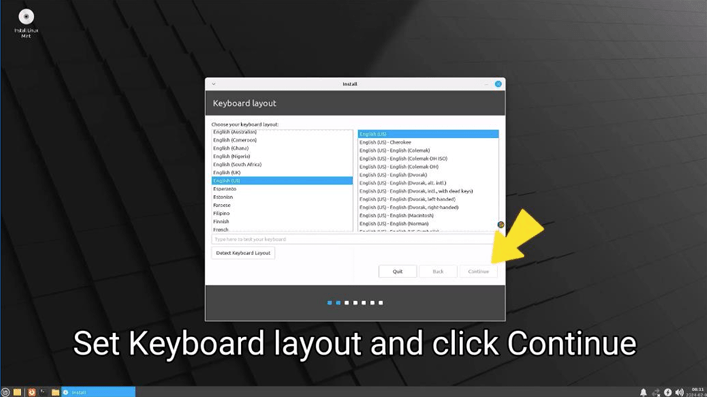
- Click Continue
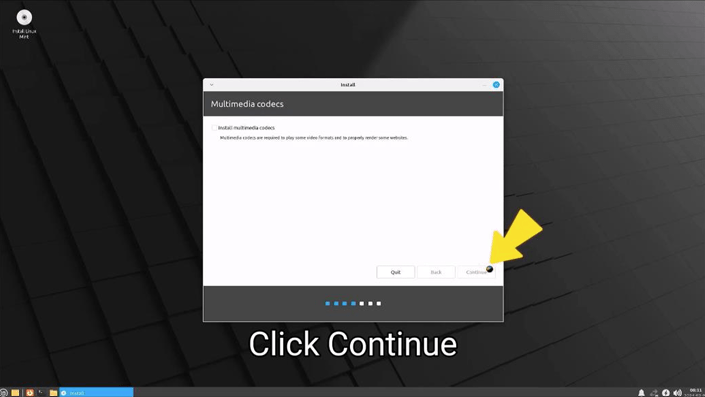
- Select Erase disk and install Linux Mint, click Install Now
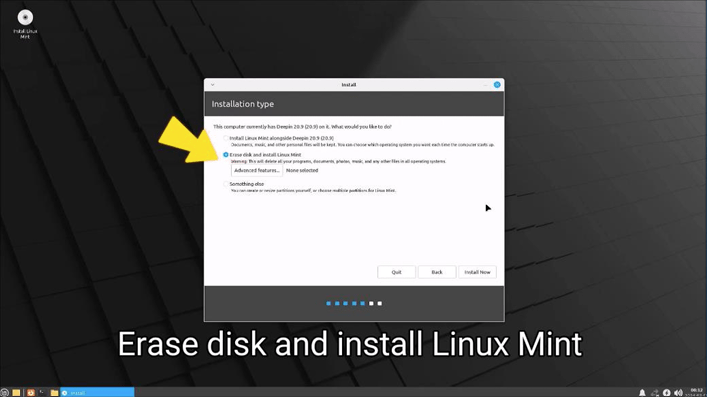
- Click Continue

- Select timezone location
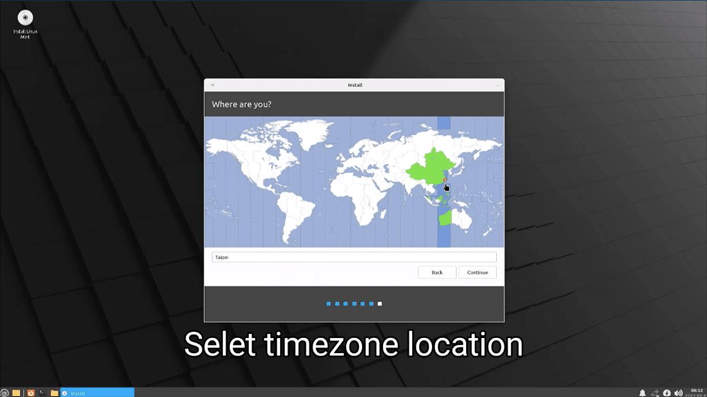
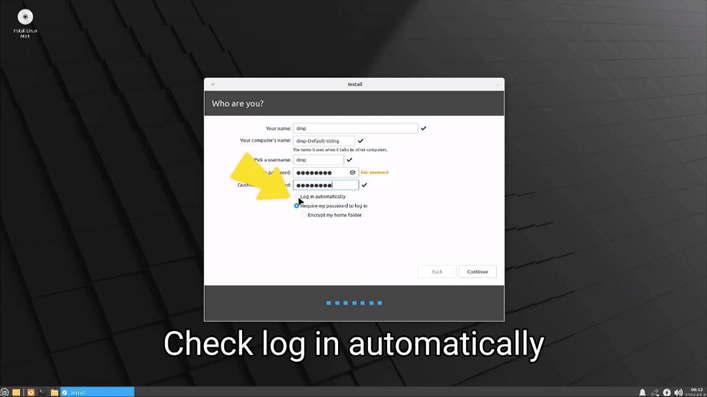
- Enter name and password

- Check log in automatically
- Click Restart Now
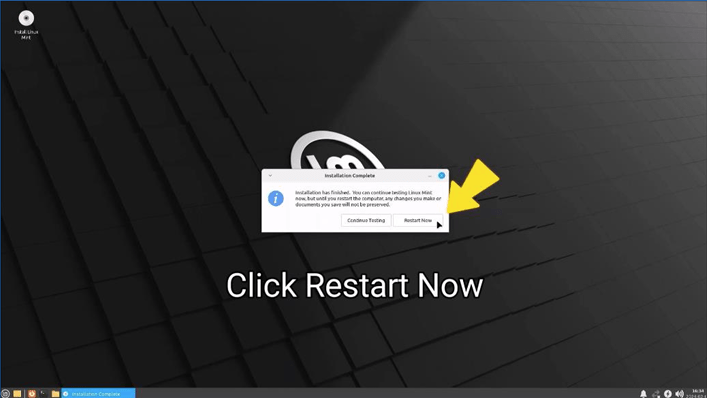
- Press DEL to enter BIOS menu after reboot

- Move to Boot
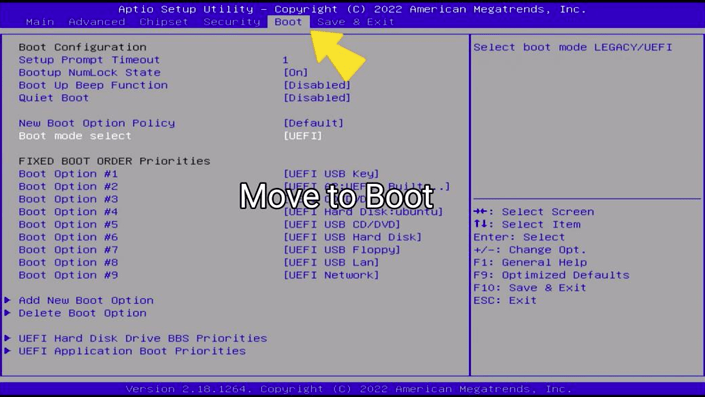
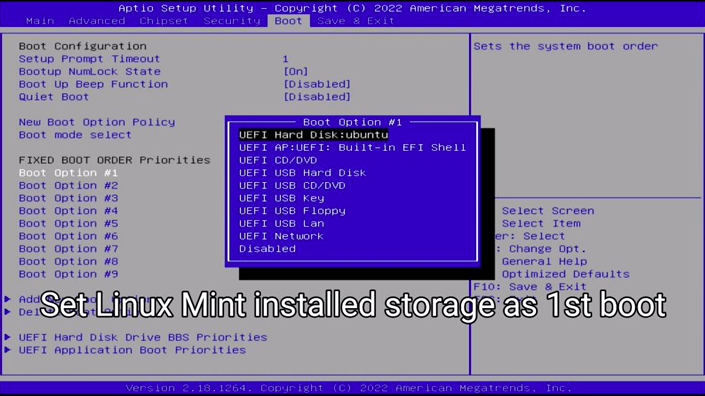
- Set Linux Mint 21.2 installed storage as 1st boot
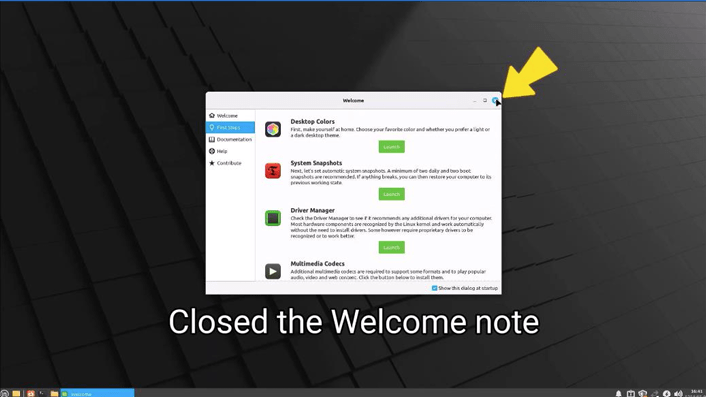
- Reboot EB-58E Series Mini PC. Closed the Welcome note
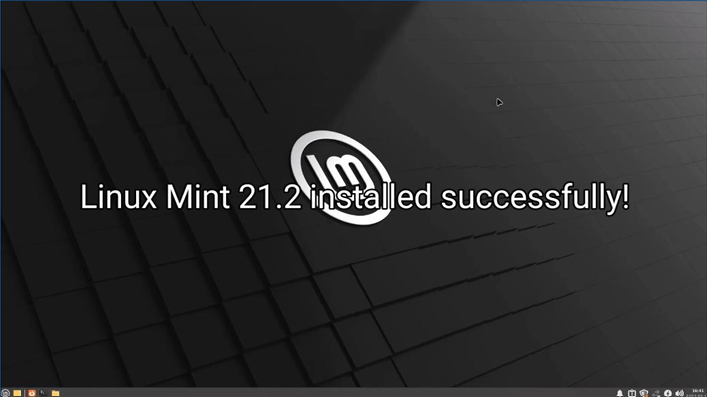
- Linux Mint 21.2 installed successfully
- Intel® Braswell x5-E8000 1.04GHz Quad Core
- SO-DIMM 8GB DDR3L
- 2S/4U/2GLAN/Mic-in/Line-out/HDMI/SATA/M.2/mSD
- AMI UEFI BIOS (Legacy mode switchable)
- Operation Temperature: 0 ~ +60°C